MetaMonster
Advanced

Building Your Own Custom Workflows

Create custom workflows tailored to your specific SEO needs. Learn about context selection, prompt engineering, and output formatting for consistent results.

Want to create a workflow that’s not in our library? Or maybe you’ve got a workflow you’ve been perfecting for months and want to use it in MetaMonster? This guide shows you how to write custom workflows from scratch.

Open the workflow builder

Click “Run a workflow” in your toolbar, then scroll to the bottom of the workflows and click “Write Your Own.”

Note: In screenshots throughout this guide, you may see this button labeled as “Optimize” — this is the old name for “Run a workflow.”

This opens the workflow builder where you can create custom workflows tailored to your exact needs.

Step 1: Select your context

Context is the default data passed to the AI for every row. You can pick any columns you’ve already generated or that MetaMonster extracted during the crawl.

Example: Select “page content” and “primary keyword” to give the AI information about what’s on each page and what it’s targeting.

The AI will use this context to execute your workflow for each row in your table.

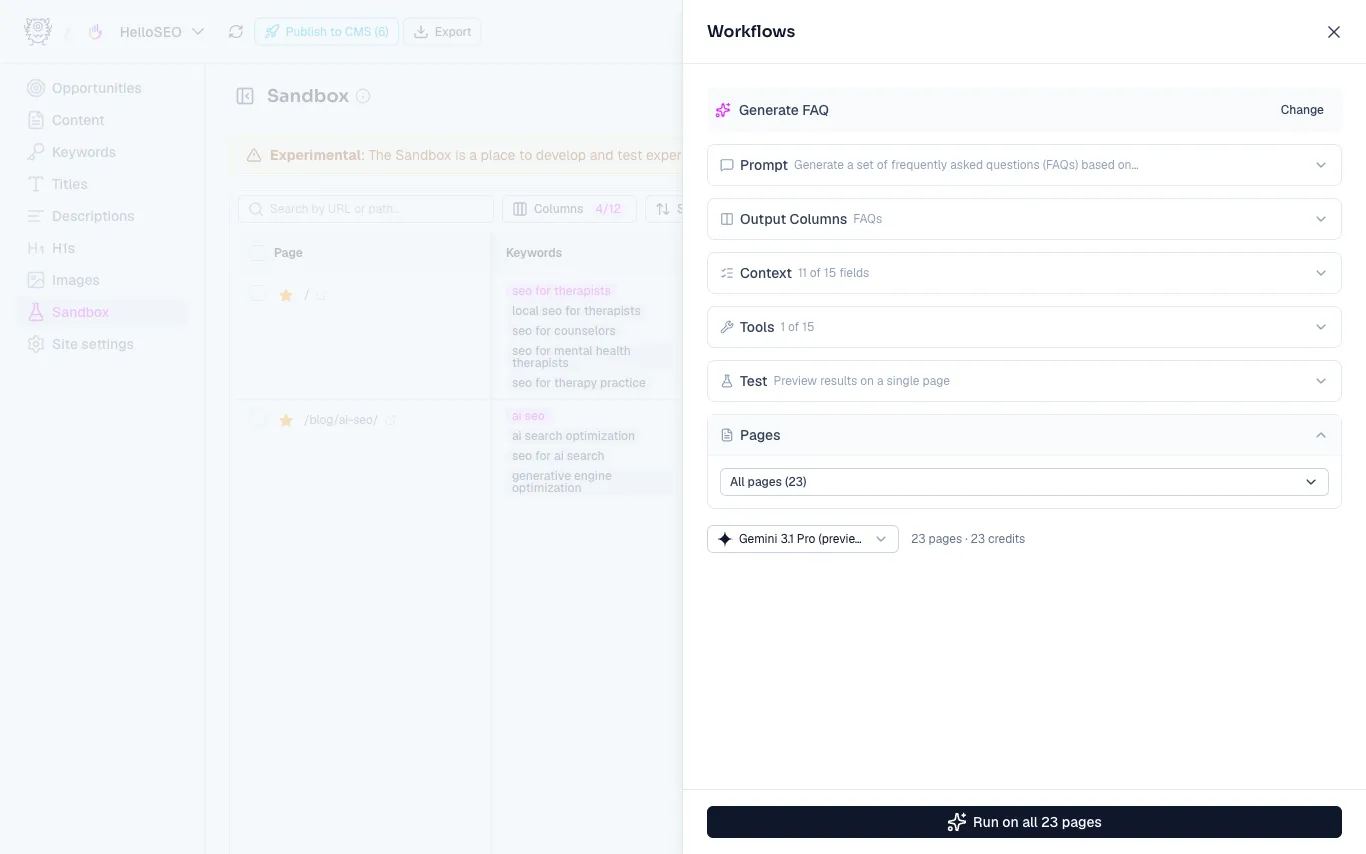
Custom workflow builder showing context selection (button shown as "Optimize" in screenshot)

Step 2: Choose your AI model

Different models have different speeds and intelligence levels. More intelligent models are typically slower and more expensive.

Model recommendations:

Gemini 2.5 Flash: Great starting point for most tasks

Gemini 2.5 Pro: Better for complex workflows or tasks that need tool calling

Gemini 2.0 Flash or Flash Lite: Good for basic workflows where you just want speed

You’ll see the credit cost for each model right in the dropdown.

Model selection dropdown with performance indicators

Step 3: Write your workflow instructions

This is where you tell the AI exactly what to do. Be specific and provide examples.

Tips for writing great workflows:

  • Be very specific about what you want
  • Provide examples of good output
  • Describe the format you want (bullet points, paragraphs, etc.)
  • Explain the task like you’re training a junior employee

Want more guidance? Check out our blog post “Prompt engineering for SEOs” for detailed best practices.

Workflow instruction editor with example text (button shown as "Optimize" in screenshot)

Using agent tools in your workflows

Your workflow can reference special agent tools to expand what it can do:

Search other grids: Tell the AI to search another grid by name using its search tool

Use SERP data: Reference the SERP tool to pull search results and intent analysis

We’ll have more documentation on all available tools in another guide.

Step 4: Define output columns

Output columns give the AI structure and keep it consistent. Each output column has three fields:

Column name

Make sure this matches the output name you reference in your prompt instructions.

Description

Give the AI more context about what the output should look like. Be descriptive here—it really helps with consistency.

Type

This constrains the AI to a specific output format:

  • Text: Plain text output (most common)
  • HTML: Formatted HTML
  • Markdown: Markdown formatted text (very common)
  • URL: Web addresses
  • Number: Numeric values
  • Boolean: True/false values (like checkboxes)
  • Date: Date values
  • Select: Tags or categories
  • JSON: Structured data
  • Raw code: Code snippets

Most of the time you’ll use text, markdown, or boolean.

Output column configuration with type dropdown

Preview credit cost

At the bottom, you’ll see a preview of how many credits it will cost to run this workflow across your filtered rows.

This updates as you change your model selection.

Step 5: Save your workflow

Once you’ve written your workflow, save it as a template so you can reuse it later.

Template settings:

Name: Give your template a descriptive name

Description: Explain what the prompt does and when to use it

Public template: This option is only for MetaMonster team members

Template scope: Choose whether this workflow should be available for all sites or just this specific site

After saving, your workflow will appear in your workflows for you and your team to use anytime.

Save workflow dialog with scope options

Example: A simple custom workflow

Let’s say you want to extract the first word from each page. Here’s how you’d set it up:

Context: Page content

Model: Gemini 2.5 Flash

Instructions: “Tell me the first word on the page”

Output column:

  • Name: First word
  • Description: The very first word that appears on the page
  • Type: Text

Save as: “Extract first word” workflow

Need help?

If you have questions about writing workflows, click the “Help” button in MetaMonster and ask us. We’ll get back to you as soon as we can.

Next steps

Once you’ve created your custom workflow, you can run it just like any other workflow. Check out the Running Workflows guide to learn more about executing workflows at scale.

Need more help?

Can't find what you're looking for? Email us at support@metamonster.ai or chat with our team.