SEO Workflows
Run MetaMonster's core SEO workflows - page titles, meta descriptions, H1s, and image alt text. Generate one page at a time or in bulk, review drafts against Search Console data, and approve as you go.
Beyond keyword research and content optimization, MetaMonster has four core SEO workflows: Titles, Descriptions, H1s, and Image Alt Text. They all work almost the same way, with a few exceptions for image alt text.
This guide assumes you’ve started with good keyword research. If you haven’t, read the Keyword Research guide first. You can also open the keyword planning tool at any time - just click any keyword and the keyword research tool pops up over your current page.
Page titles
Page titles are still one of the simplest and best things you can do to signal to both AI search and traditional SEO what a page is about and what it should rank for.
Open the Titles page and you’ll see a list of all your pages, each with:
- Its keywords, with the primary keyword highlighted in pink
- The current title and its length
- A draft title with its length
- Your Search Console data
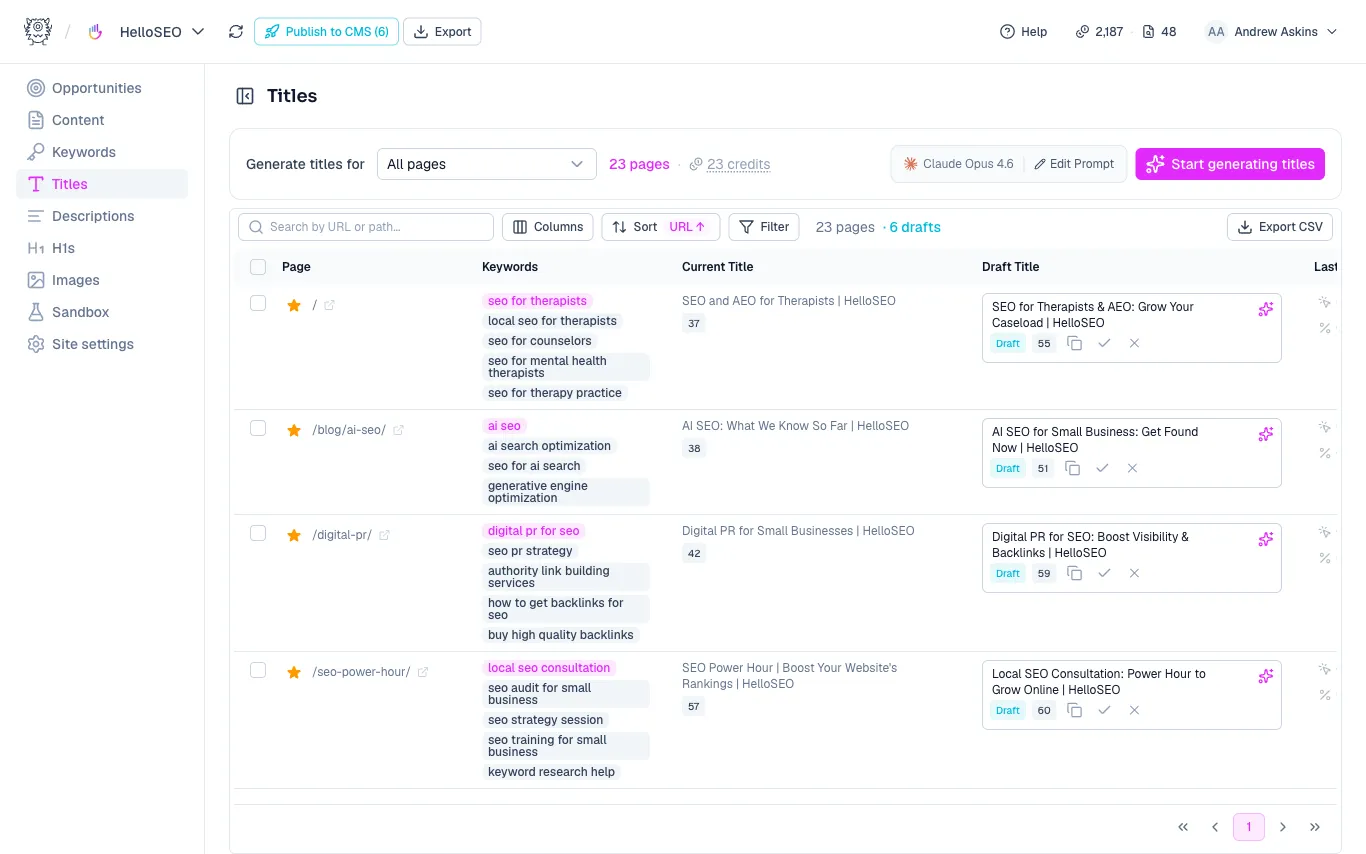
Search Console data helps you decide whether to replace an existing title. Click-through rate is especially useful - high impressions with low clicks and a low click-through rate usually means there’s room to optimize the title.
Generating one title
Click the pink sparkle icon in any draft title box to generate a title for that page. Once it’s generated, it’s marked as a draft with a character count.
Don’t worry too much about character counts - that’s mostly a concern from the past, but it’s there if you need it. Each draft also gets a quick copy link and icons to approve or delete it.
Filtering and columns
Use the filters to narrow the list - for example, searching for blog pages to generate titles for just your blog. You can also adjust which columns you see, change the sort, and add custom filters. Once you’ve created drafts, a draft indicator appears that you can click to apply a draft filter and see only active drafts.
Bulk generating
The quick panel at the top handles bulk generation. You can generate titles for:
- All pages
- Pages without drafts
- Priority pages (the pages you or the system marked as most important)
- The first five pages (handy for a quick test)
- Selected pages
You can also bulk approve or delete drafts. The panel shows the model it’ll use and the credit cost, and lets you edit the prompt if you want to generate differently.
For example, to generate titles for your priority pages: choose Priority pages, click Start generating titles, decide whether to overwrite existing drafts, and click Generate. A progress bar tracks how many have finished while the draft boxes update from generating to draft.
Descriptions and H1s
Meta descriptions and H1s work almost identically to titles - same draft boxes, filters, Search Console data, and bulk generation.
Image alt text
Image alt text is the one exception, because images don’t map one-to-one with pages. Every page has one title, one meta description, and should have one H1 - but a page can have multiple images, and the same image can appear on multiple pages.
To handle this, MetaMonster uses a focus page: the page you want to optimize the image for. For most sites, generating alt text optimized for every page an image appears on is overkill, and the same image often shows up as separate files anyway. The focus page keeps things simple by pulling in the keywords for just that page, along with the current alt text (if any) and the draft alt text.
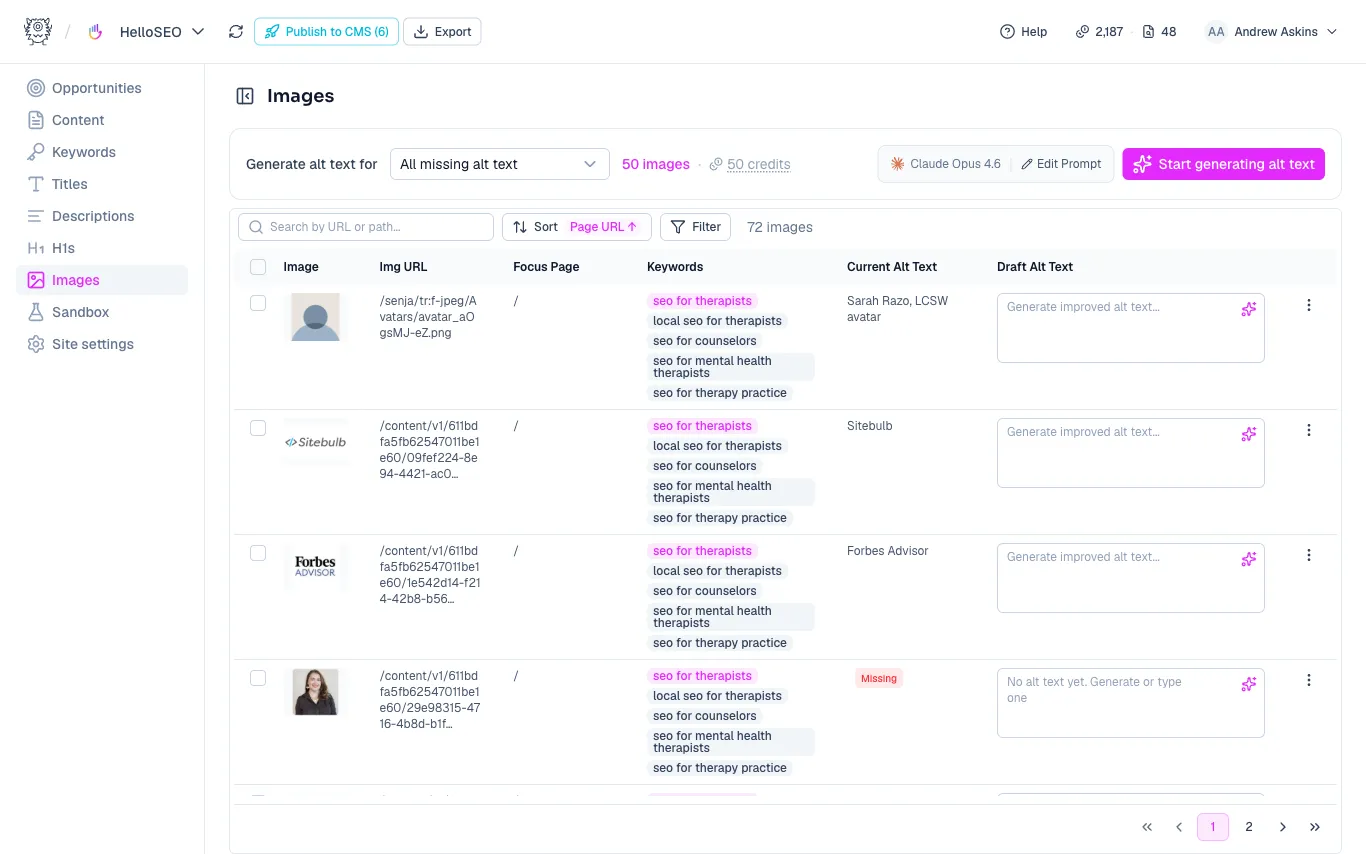
When an image appears on multiple pages, you’ll see the option to change the focus page - for instance, an image on four pages can be optimized around whichever page you choose. The image alt text page also has slightly different filters and options for the same reason.
Approving and deleting drafts
Occasionally the AI makes a small mistake - for example, including HTML tags in a title. It doesn’t happen often, but you can fix it manually by deleting the tags. If you see it happen a lot, edit the prompt to specify text only, never HTML tags.
Once you’re happy with a draft, you can publish it to your CMS (covered in the CMS Integrations guide) or copy and paste it manually. The approve and delete buttons are most useful for manual workflows: copy a draft, paste it into your CMS, then mark it approved to track what you’ve already done.
This gets even easier with the drafts filter applied - once you mark something approved, it disappears from the list, so you can focus on what’s left.
Need more help?
Can't find what you're looking for? Email us at support@metamonster.ai or chat with our team.