Content Optimization
Learn how MetaMonster's content optimization tool works. Review your content brief, analyze a page against a transparent AI rubric, generate drafts you can review change by change, and export or share when you're done.
The content optimization tool is the core of MetaMonster. It’s built to help you optimize your content for quality, not just keyword count, so the result still reads well for humans while being well optimized for search.
The page workspace
When you open a page, you’ll see tabs across the top:
- Brief - the research behind the page: what ranks for your keyword, whether you can win it, and the structure to write against
- Content - the editor, where you work through recommendations and drafts
- Metadata - the page’s title, meta description, and schema
- Links - internal and external links on the page
- Images - the page’s images and their alt text
Most of your time goes into the Brief and Content tabs.
Assigning keywords
The first step on any page is assigning keywords. You can do this here, or in the larger Keywords tool.
After you click Assign Keywords, you can:
- Click Assign with AI to let the agent suggest keywords
- Assign keywords manually
You’ll see your Search Console keywords alongside suggestions based on SEO data, so you can pick what fits the page.
The content brief
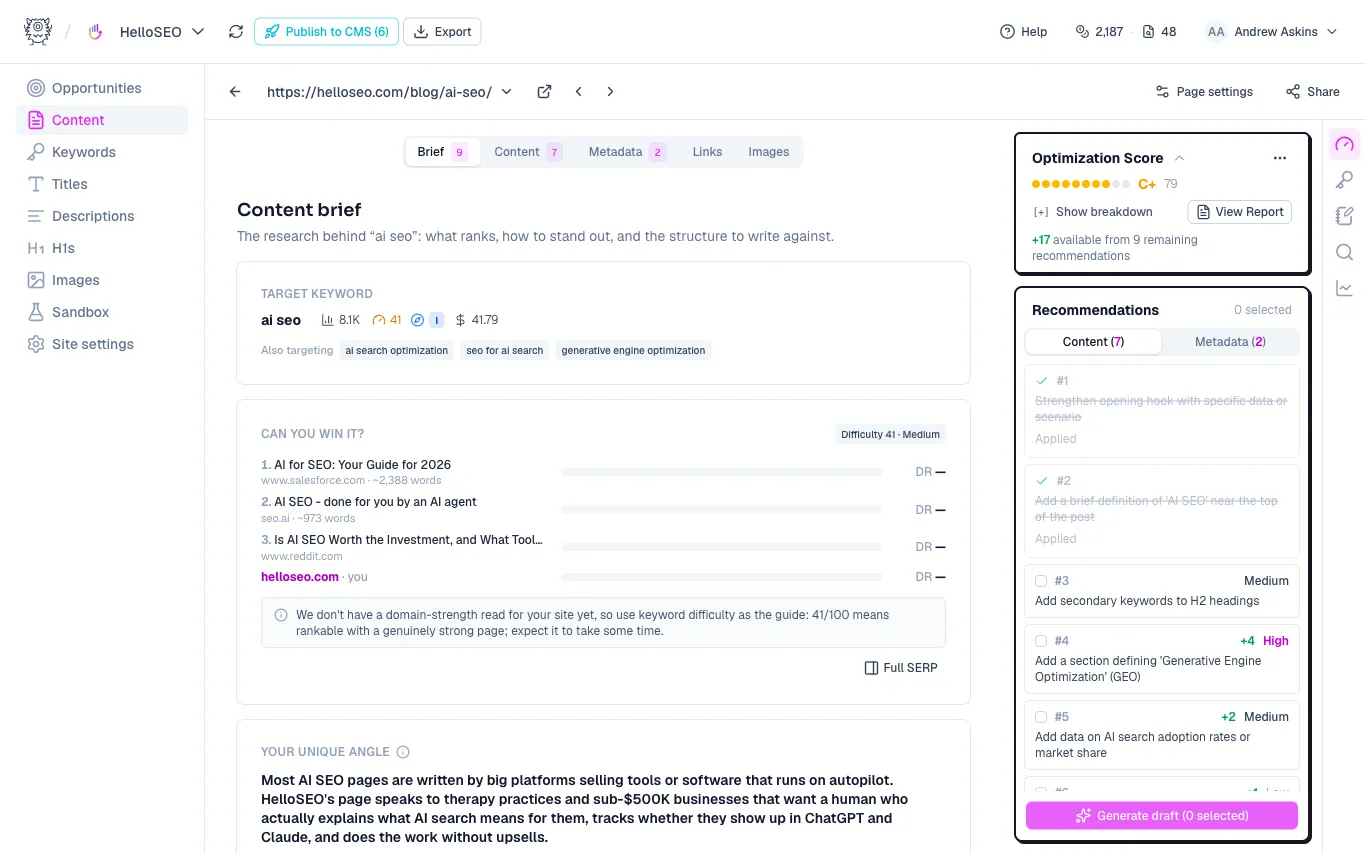
Once a page has a keyword, the Brief tab shows the research for it: your target keyword with its volume and difficulty, the pages currently ranking (with their domain ratings, so you can judge whether you can compete), and a suggested angle for what only you can add. It’s the plan you’d hand a writer before they start.
Analyzing a page
Once keywords are assigned, you’ll see the option to Analyze the page. You can analyze from the list or after clicking into a page.
Analysis runs in three steps:
- SERP analysis - looks at the existing search results to find what’s missing from your page that’s helping other pages rank.
- SEO optimization - our more holistic version of optimization, including content quality and authority signals, not just keywords.
- Recommendations - the AI agent generates its recommendations.
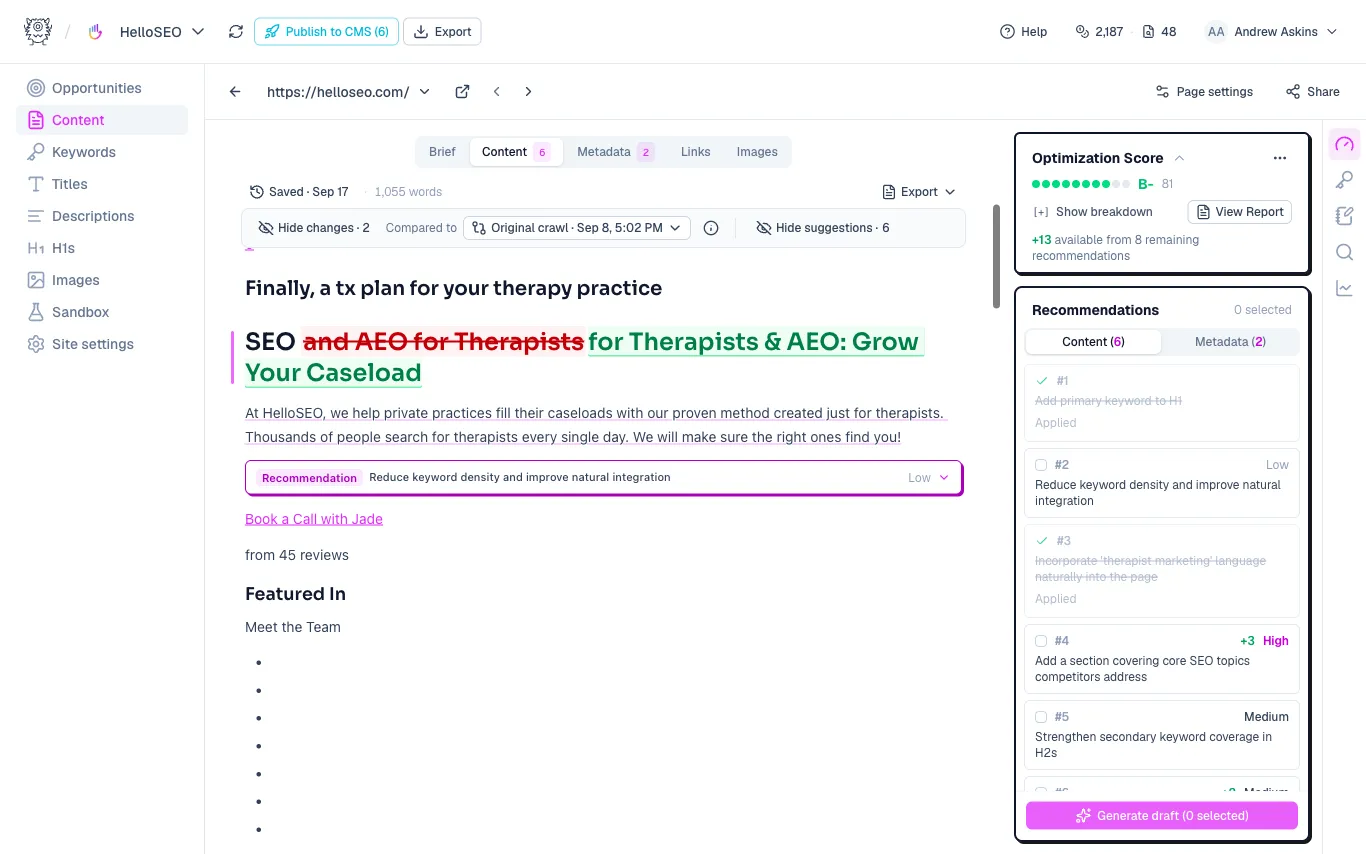
When it’s done, you’ll see an optimization score, an option to view a detailed report, and your list of recommendations.
Working through recommendations
Click through your recommendations one by one. For each, you’ll see the recommendation, why it matters, and what’s being suggested. From there you can:
- Generate - have the AI draft the change
- Resolved - tell the AI you’ve already addressed the issue manually
- Dismiss - skip a recommendation that doesn’t apply
You can also check off several recommendations and generate one draft that addresses all of them at once.
Reviewing a draft: Generated changes show up in the editor as tracked changes, with the old text struck through and the new text highlighted, so you can see exactly what the AI wants to change before you accept it. You can compare against any earlier version of the page.
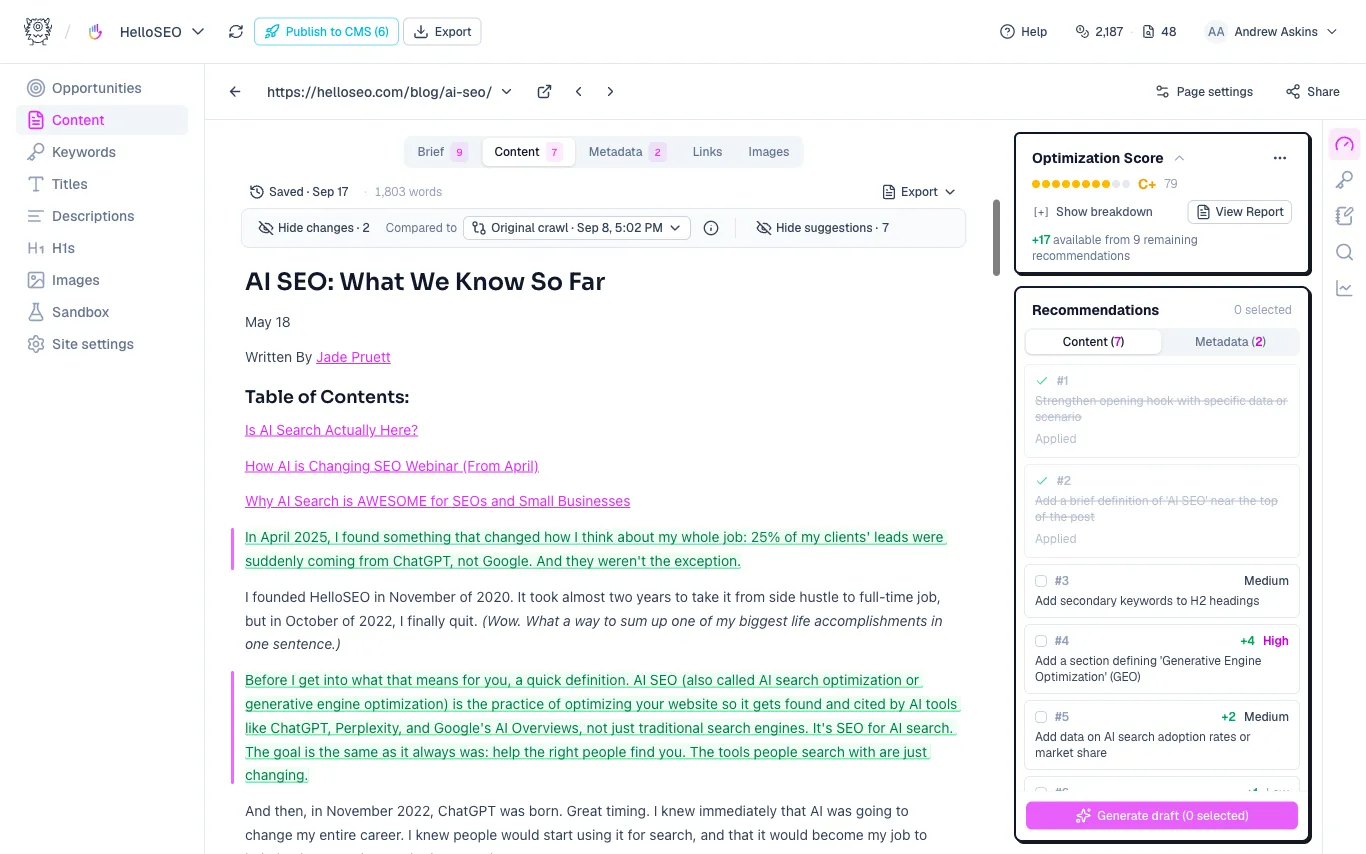
About the score: Try not to overly focus on the exact number. Use it as a directional guide, a way to gauge whether there’s more you can get out of your content, rather than a perfect measure of quality. As you apply recommendations, your projected score increases.
The right-hand panel
The panel on the right gives you a few views:
- Score and recommendations - the main optimization view
- Keywords - review and edit the keywords for the page
- SERP results - see results for each of your keywords
- Analytics - your last 28 days of Search Console data
You can collapse this panel for a clean view, useful when you want to share something with a client or focus on the writing without every recommendation on screen.
The report
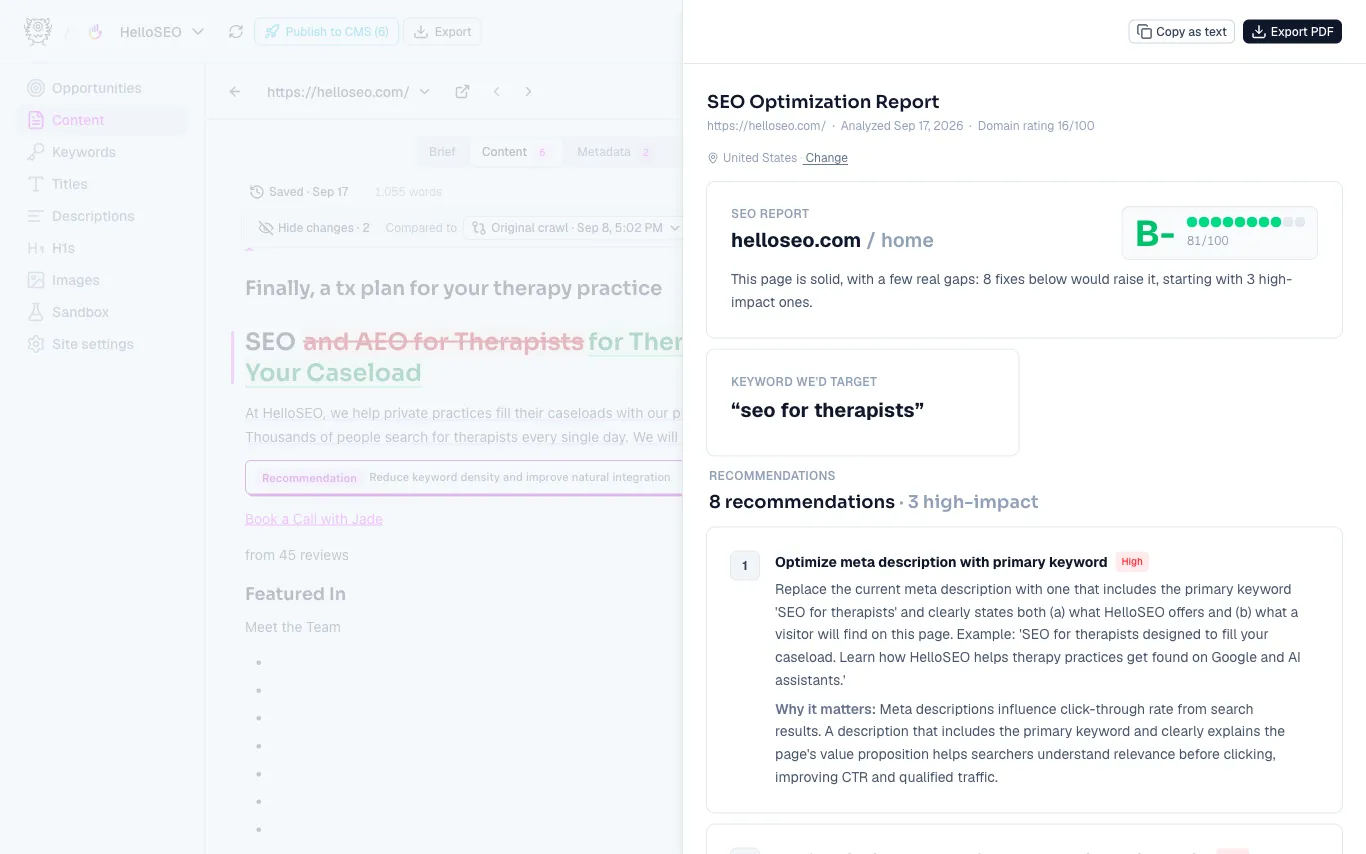
Click View Report for a client-ready summary: the page’s grade, the keyword we’d target, and every recommendation with its rationale. You can copy it as text or export a PDF, and it doubles as a lead-gen tool when you’re pitching new work.
Rerun, edit the rubric, and score history
Click the three dots on the score card to find more options:
- Rerun analysis - generate a fresh set of recommendations and an updated grade, for example after changing a keyword.
- Edit the rubric - full control over the AI rubric we use to generate grades, so you can adjust the system to match your preferences.
- Score history - a detailed breakdown of every element of the rubric, exactly how the agent scored it and why.
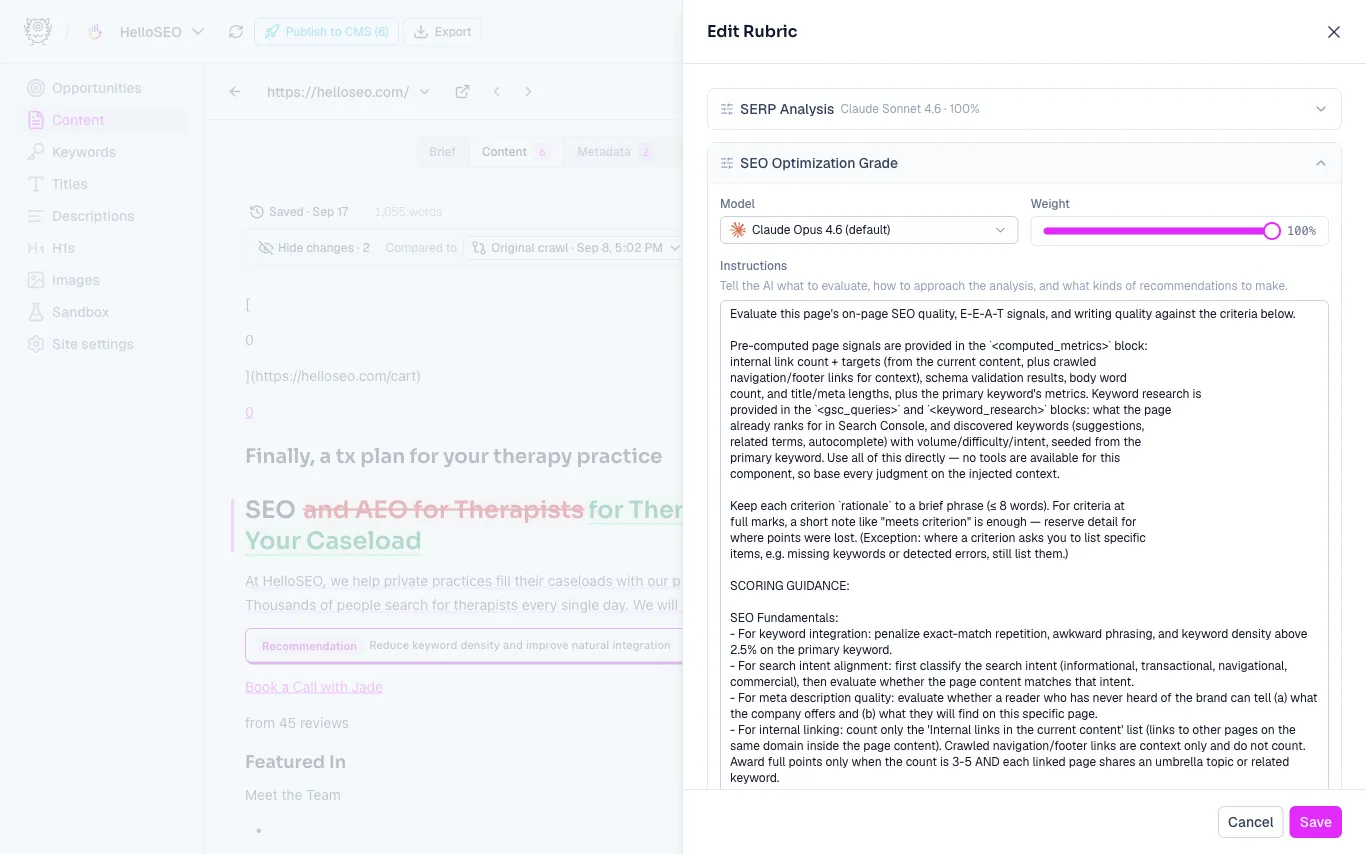
Score history is helpful when you disagree with a grade or want to understand why something scored the way it did. Our goal is a tool that’s transparent and fully customizable. No black boxes.
Exporting
When you’re happy with a page, click Export to copy the content for Google Docs, Notion, as rich text, or as Markdown, or download the Markdown file.
Share the result with your clients, gather feedback, and keep iterating. You can always rerun the analysis to see a fresh set of recommendations and an updated grade.
Need more help?
Can't find what you're looking for? Email us at support@metamonster.ai or chat with our team.